With the content tagged, you can create the first rotation of the example exam, Morning - Blue, and let Valuatic generate its stations.
Create the Rotation
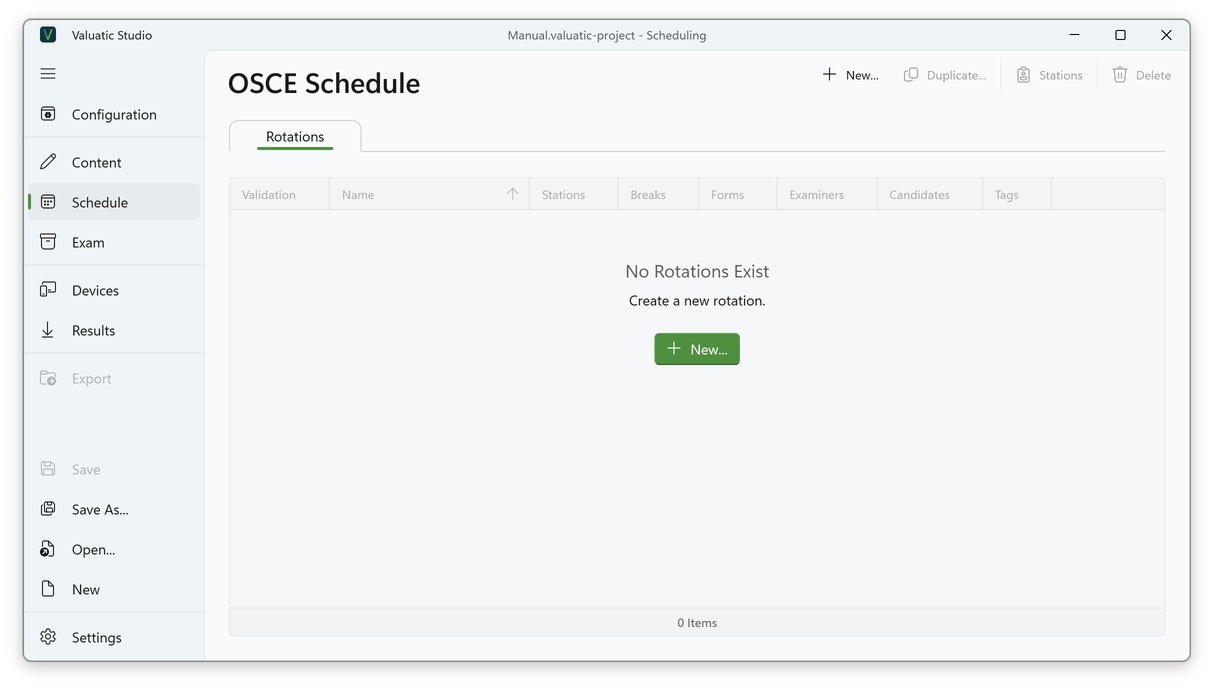
Switch to the Schedule screen on the left-hand side. There are no rotations yet, so click New….
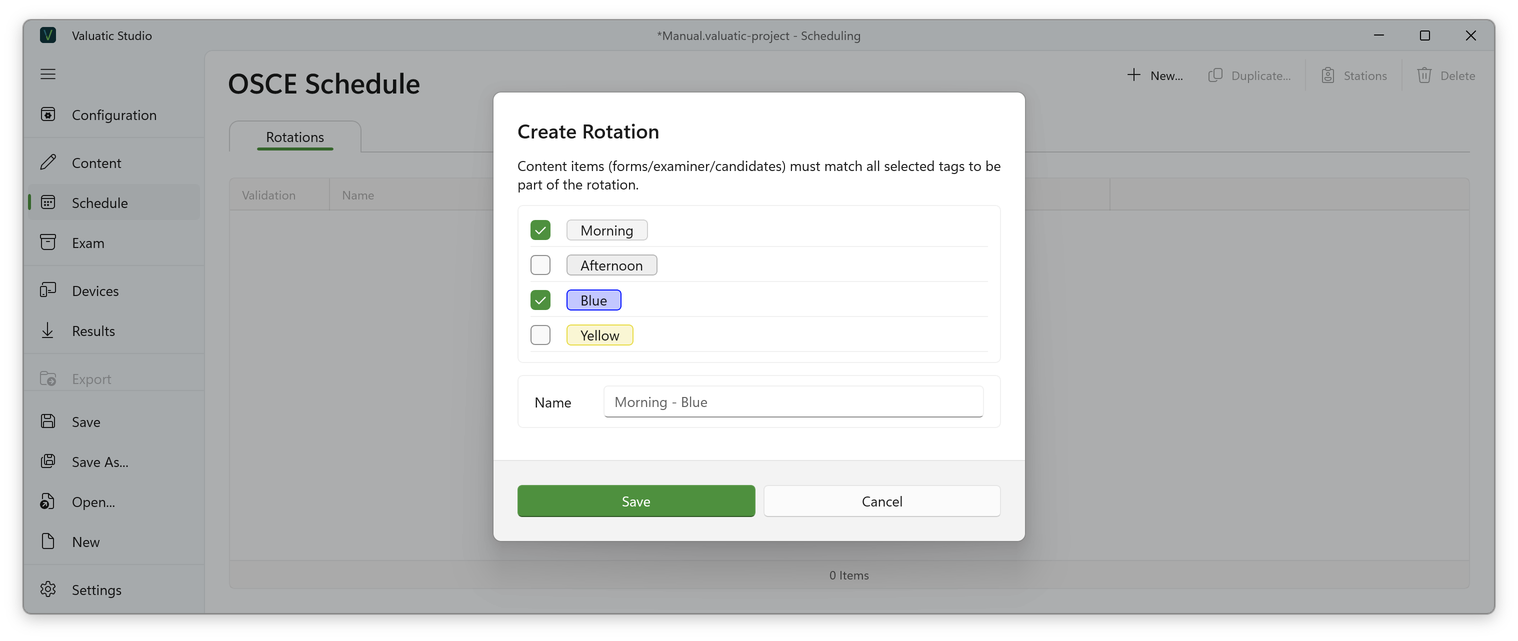
- Select the tags of the rotation: Morning and Blue.
- Keep the suggested name or enter your own. The name is built from the tags, in the order of the tags.
- Click Save.
Note: Only forms, examiners and candidates that carry all selected tags become part of the rotation.
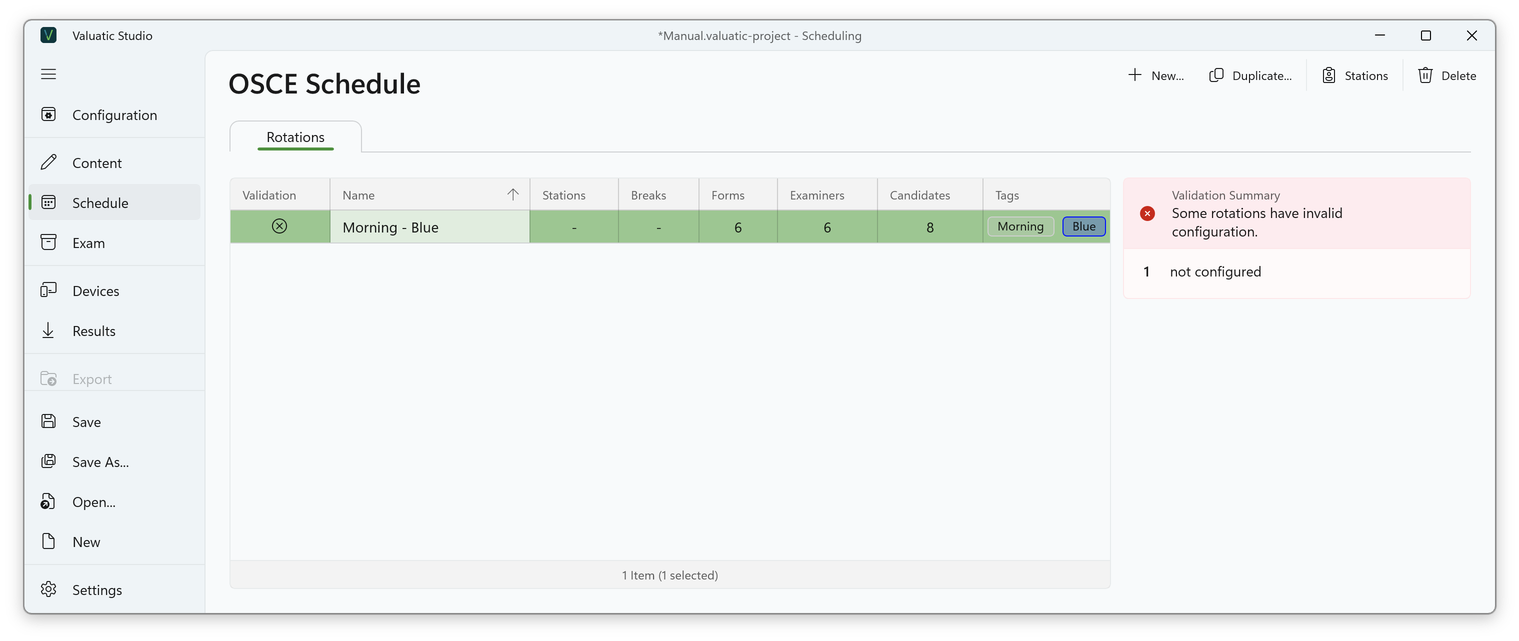
The rotation list shows how much content matches the tags: in the example, six forms, six examiners and eight candidates. The validation reports that the rotation is not configured yet, because it has no stations.
Generate the Stations
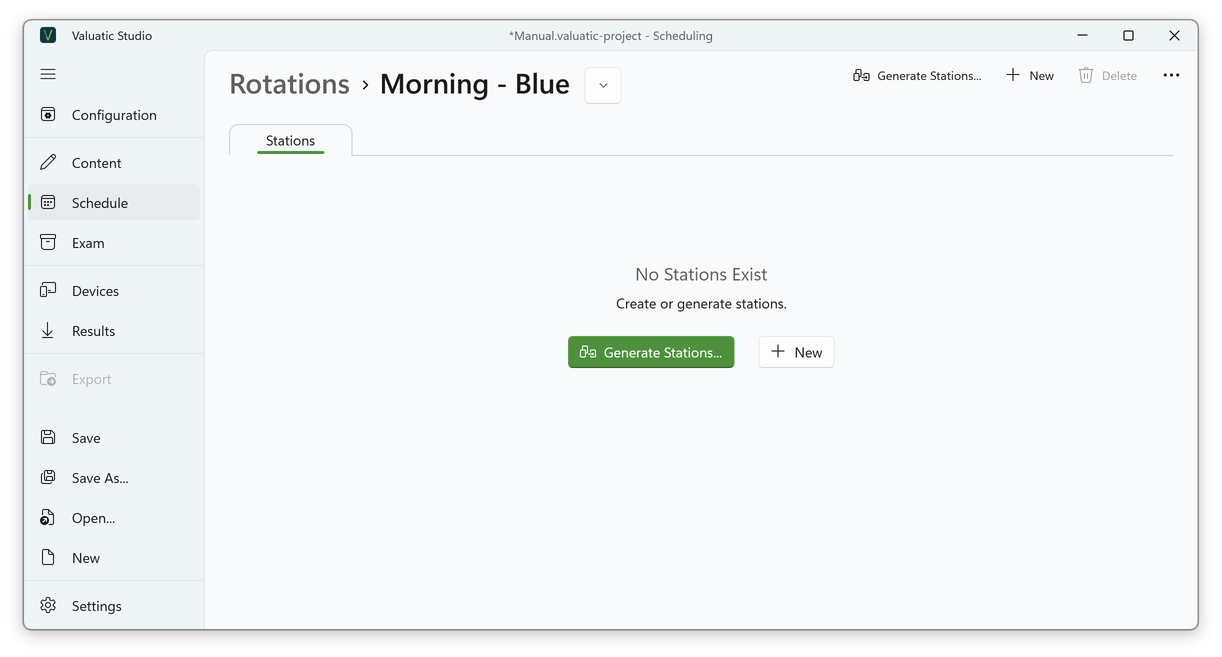
Double-click the rotation, or click Stations, to open its stations. Stations can be added one by one with New, or generated automatically with Generate Stations….
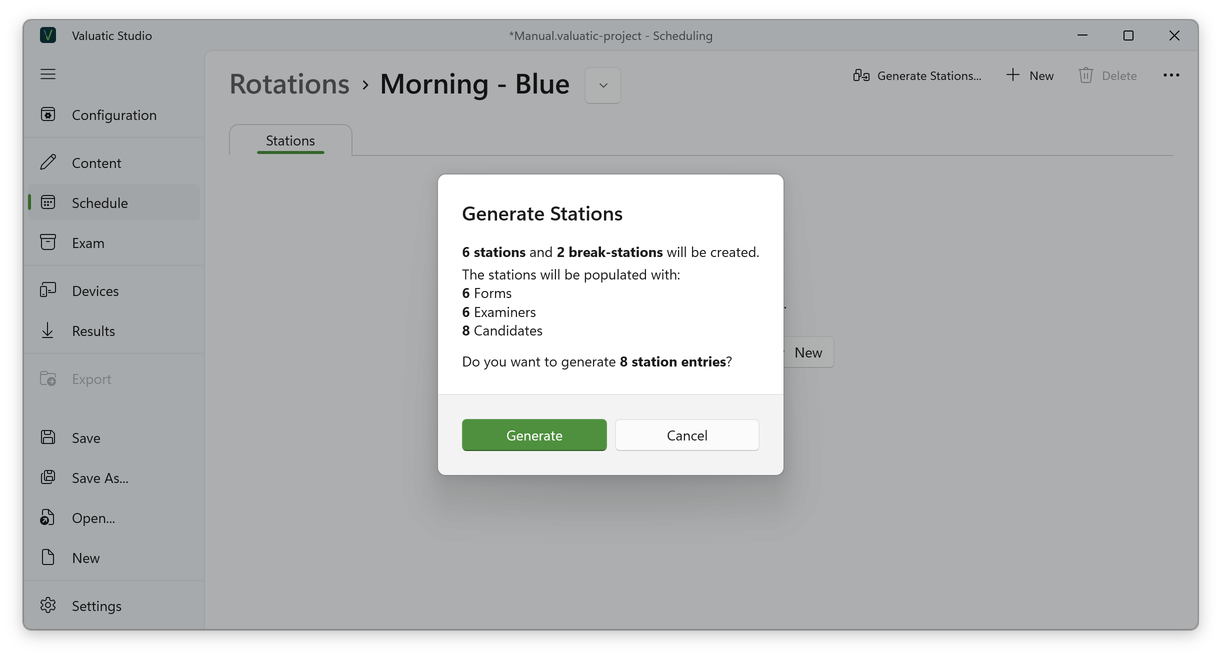
Generate Stations first shows a summary of what will be created: in the example, six stations and two break stations, filled with six forms, six examiners and eight candidates. Valuatic works out the break stations itself: eight candidates need eight places, but there are only six forms. Click Generate.
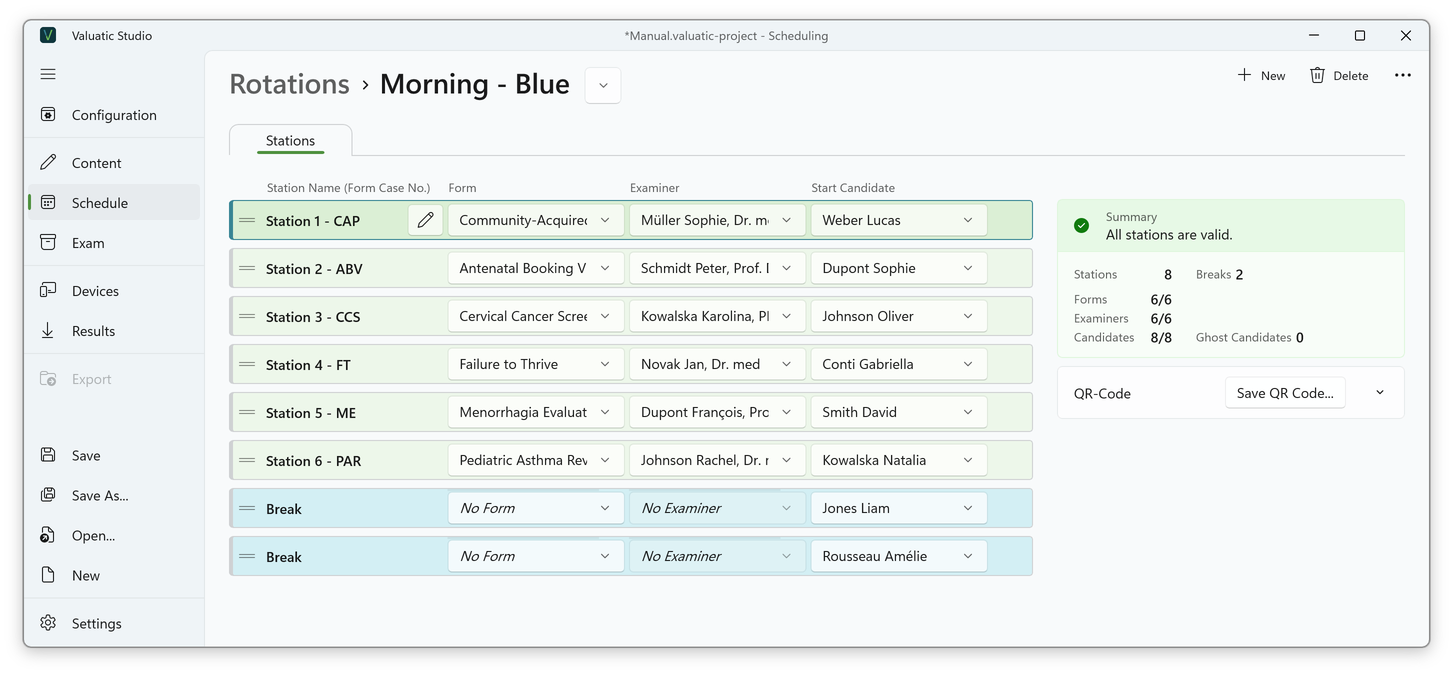
The stations are filled in the order you defined for the forms, examiners and start candidates. Each station is named after the case number of its form; the name can be changed with the edit button.
The summary on the right confirms that all stations are valid and that all forms, examiners and candidates are assigned. If something is missing, for example a candidate without a station, the counts show it (e.g. 7/8) and the rotation is not valid yet.
Spread the Breaks
The generated break stations are added at the end of the list. Valuatic can’t know where you want the breaks, so you place them yourself.
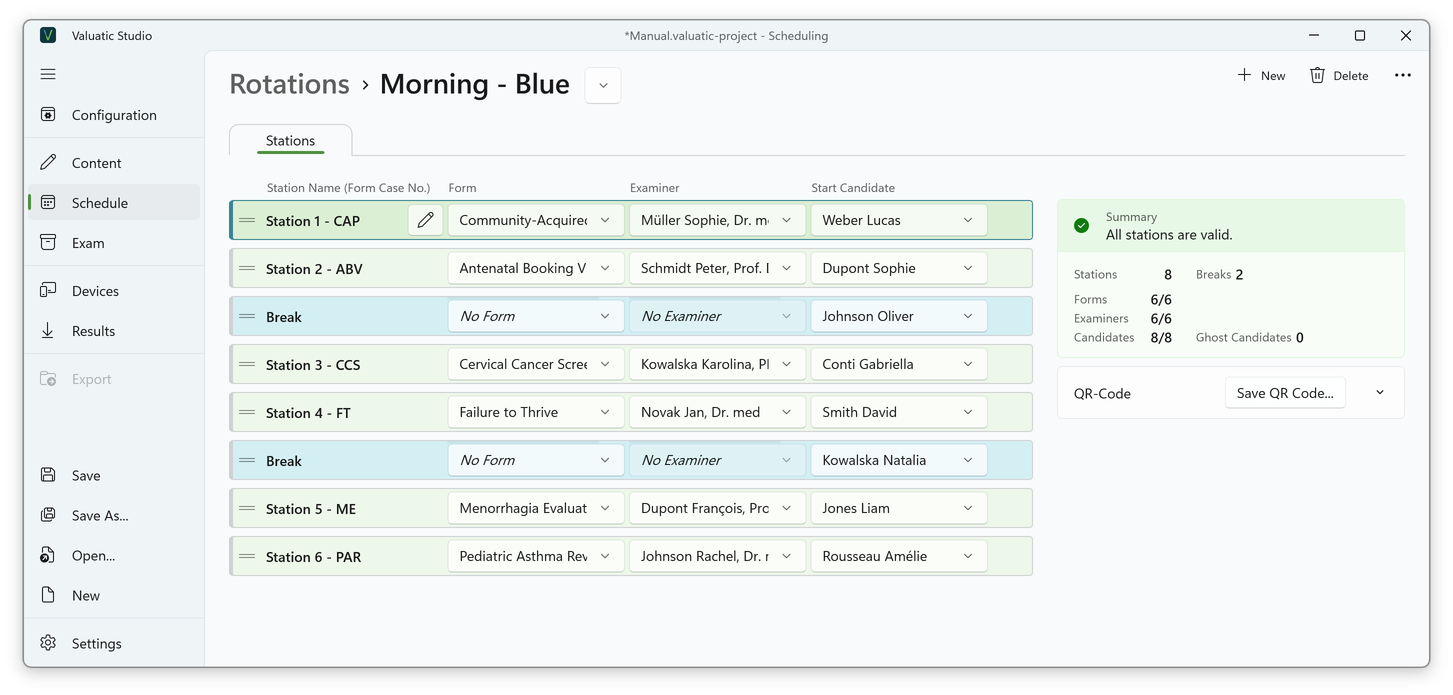
Rearrange the stations by dragging the handle on the left; the order of the list is the order of the circuit. In the example, the breaks are spread evenly: one after every two cases.
Note: Only the stations move. The start candidates keep their order, because they define who starts where.
Add the Ghost Candidate
To give the examiners a break as well, a ghost candidate moves through the rotation like a real candidate. Wherever the ghost is, that examiner has a pause.
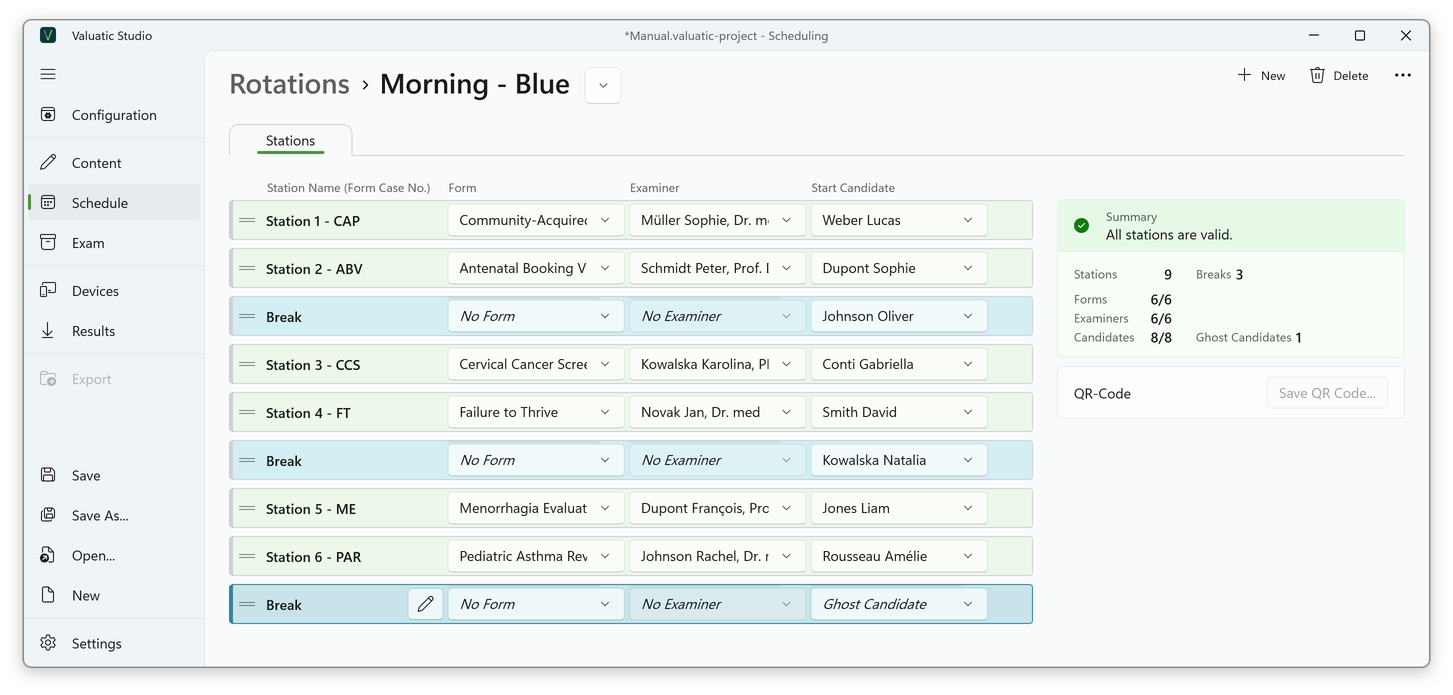
- Click New to add one more station.
- In the new station, select No Form, No Examiner, and Ghost Candidate as start candidate.
The summary now shows nine stations, three breaks and one ghost candidate, and all stations are still valid.
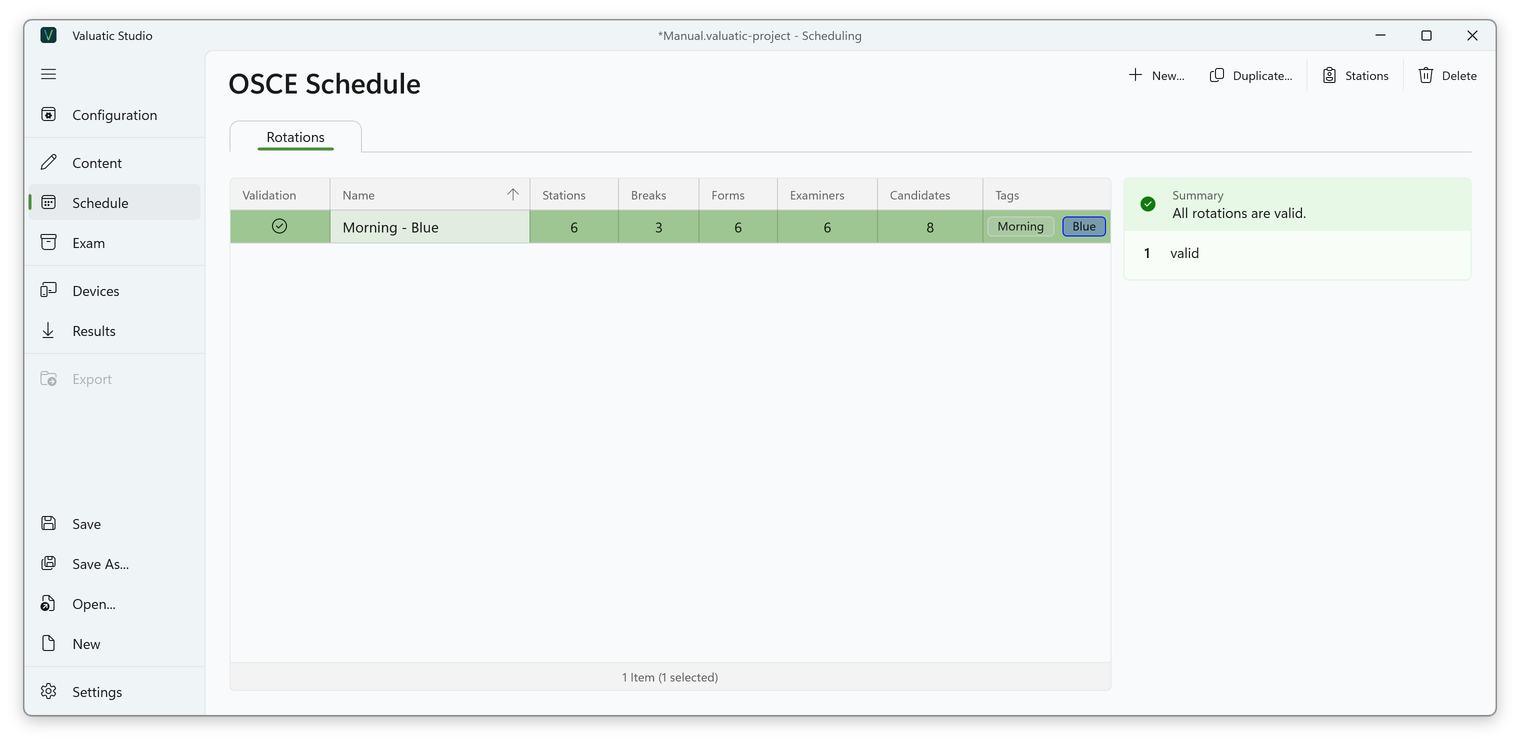
Back in the overview, the rotation is marked as valid.
Next: Duplicate Rotations