A rotation is one group of candidates moving through a set of stations. It is configured by selecting tags and uses only the content that carries all of them.
Rotation List
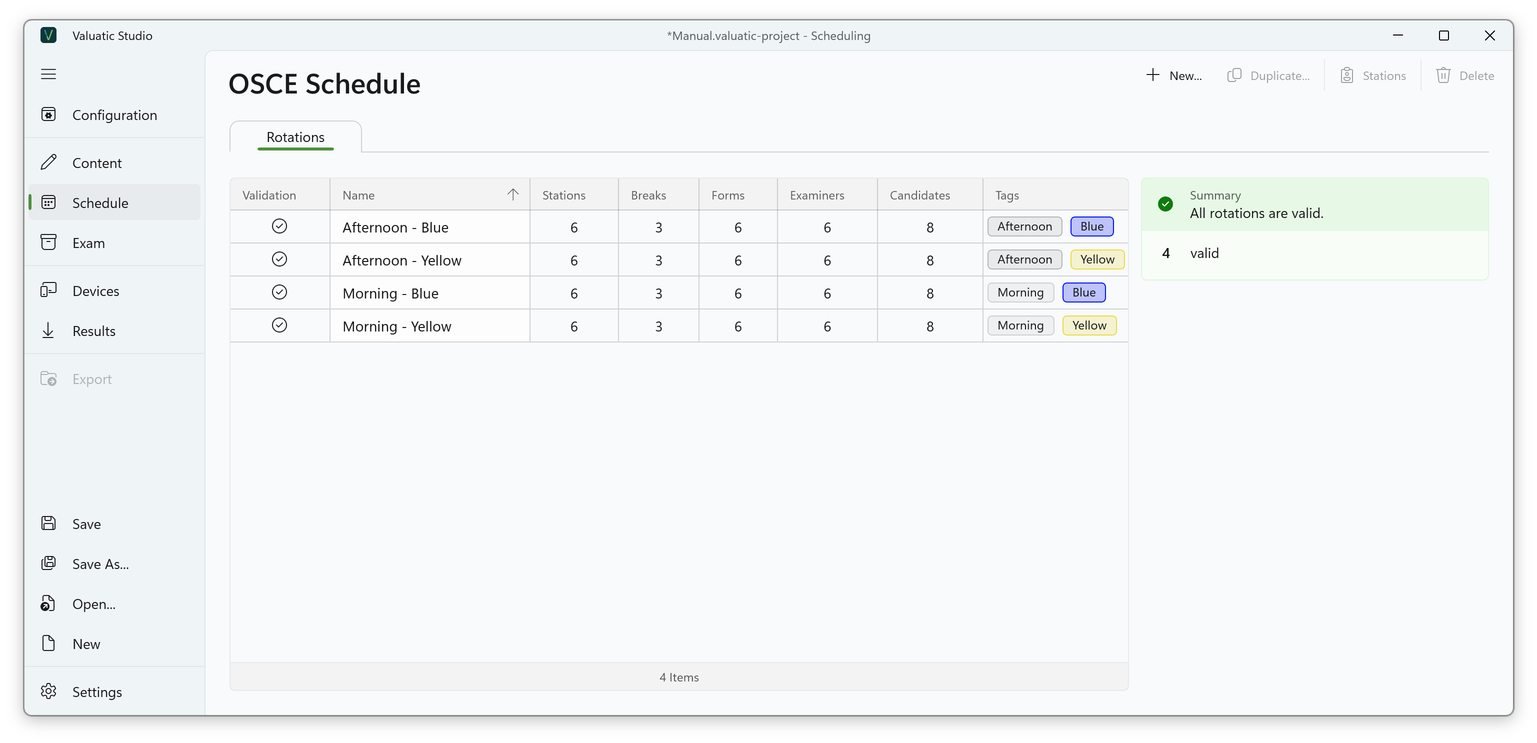
The Rotations tab of the Schedule screen lists all rotations of the project with their validation state, name, number of stations and breaks, how many forms, examiners and candidates match, and their tags.
The following actions are available:
- New… creates a rotation.
- Duplicate… creates a new rotation from the selected one.
- Stations, or a double-click on a rotation, opens its stations.
- Delete removes the selected rotation including its stations.
The summary on the right reports whether all rotations are valid. A rotation without stations is shown as not configured.
Create a Rotation
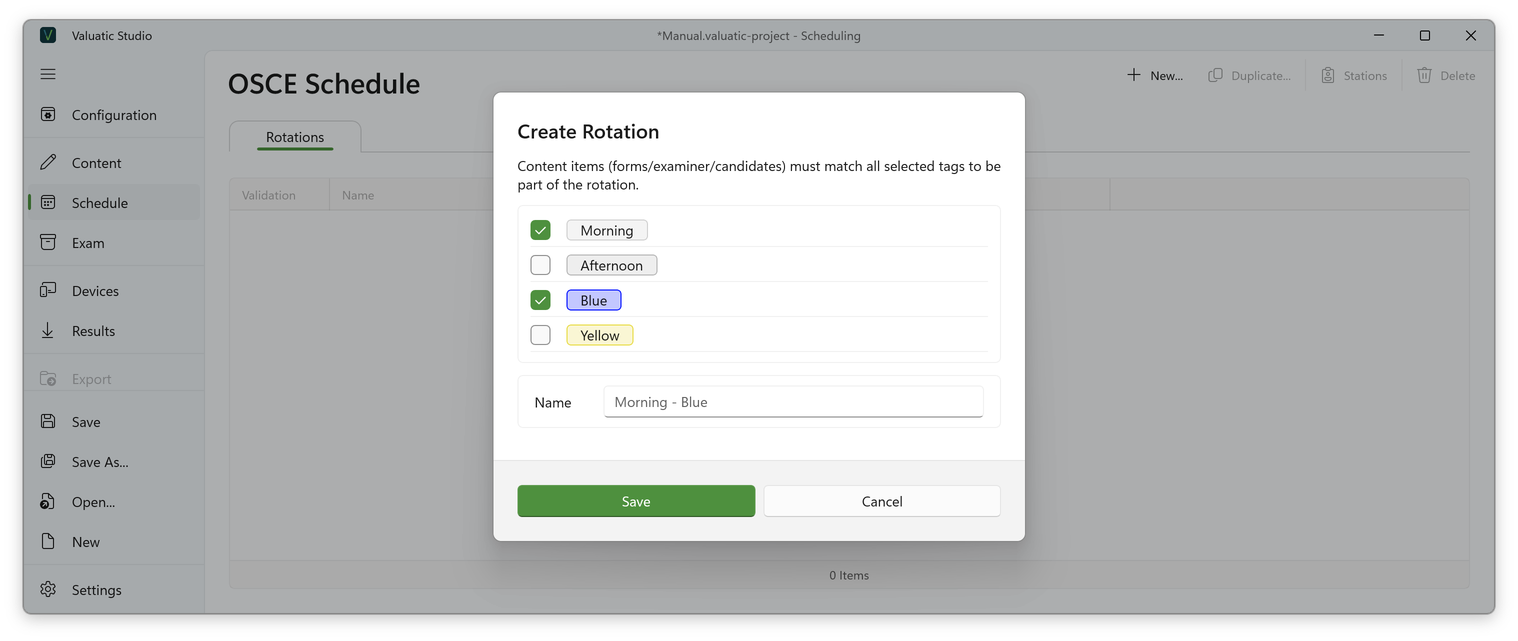
Select the tags that describe the rotation, e.g. Morning and Blue. Only forms, examiners and candidates that carry all selected tags become part of the rotation.
A name is suggested from the tags, in the order of the tags. It can be changed to any name you like.
Duplicate a Rotation
Video: Duplicating rotations (2:00)
When several rotations share the same structure, set up one rotation and duplicate it: the rotation acts as a blueprint, and its stations, breaks and ghost candidates are copied.
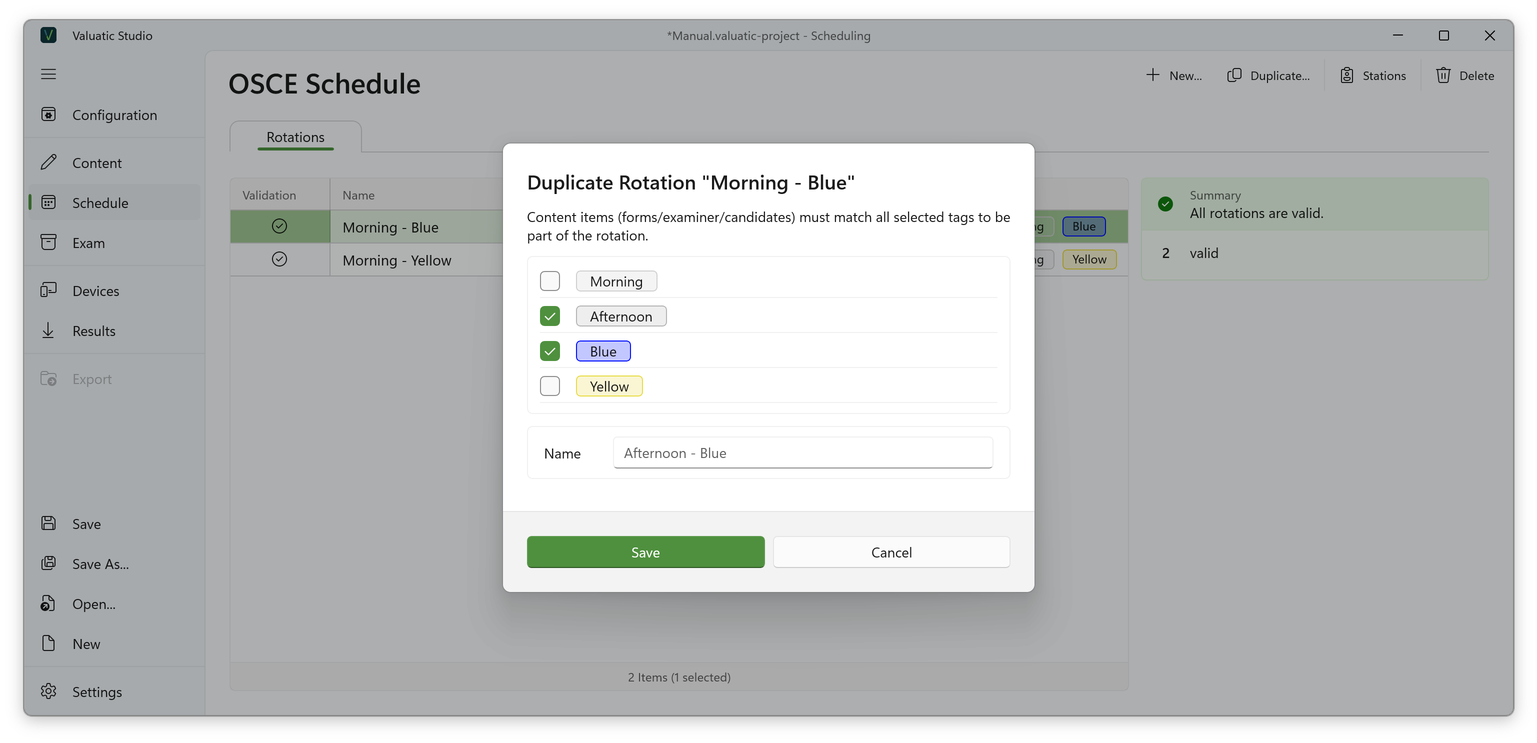
In the dialog, choose the tags of the new rotation; the name is suggested again. The content with the new tags fills the copied structure in its order:
- Forms, examiners and candidates that carry the new tags take the places of the original ones.
- This also works when none of the original content matches the new tags, e.g. when duplicating a morning rotation for the afternoon with other forms.
Tip: Generate and adjust the stations of one rotation, then duplicate it for all rotations with the same structure. No break stations have to be moved or added again.