The stations of a rotation define which form and examiner are at which station, and where each candidate starts. They can be generated automatically and then adjusted, or created manually one by one.
Station List
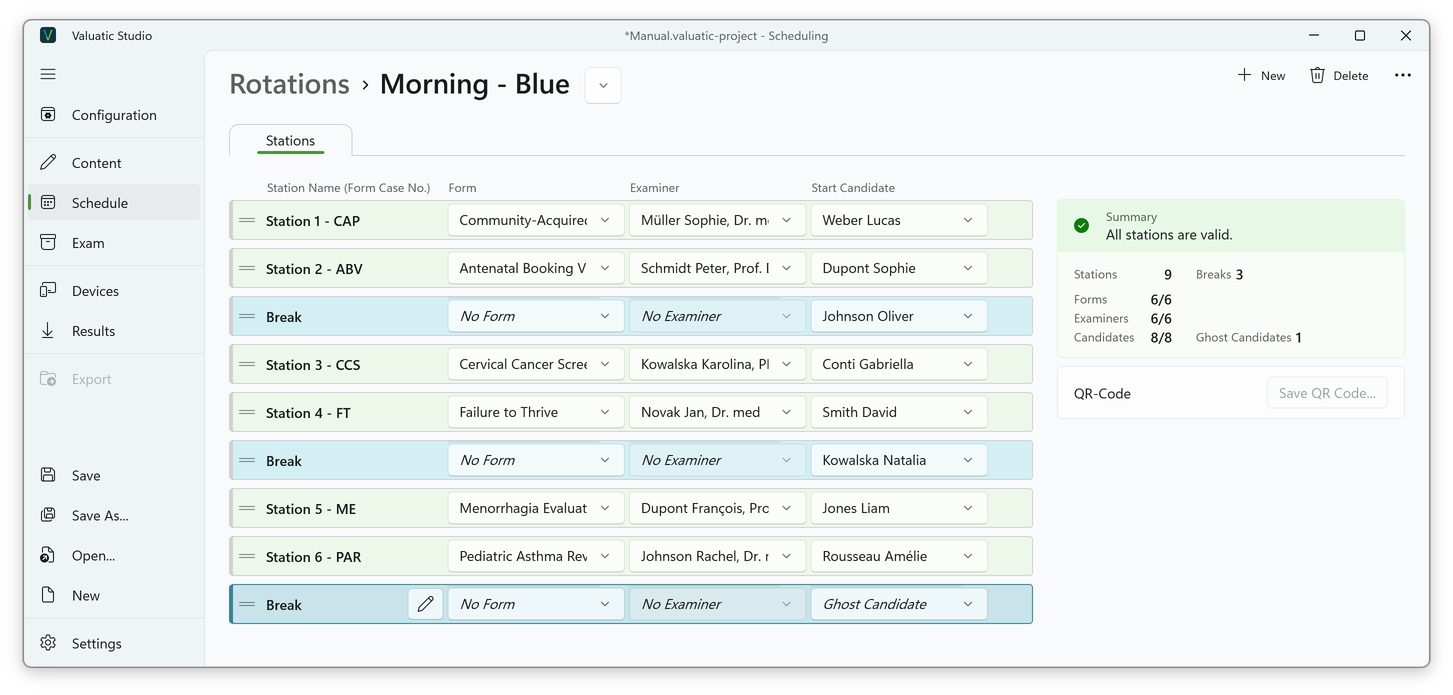
Open a rotation with a double-click or Stations in the rotation list. Use the dropdown next to the rotation name in the breadcrumb to switch between rotations.
Each row is one station:
- Station Name — named after the case number of the form (e.g. Station 2 - ABV). The name can be changed with the edit button.
- Form — the form the examiner uses at this station.
- Examiner — the examiner assessing at this station.
- Start Candidate — the candidate who starts the rotation at this station. With every round, the candidates move one station down; the candidate of the last station moves to the first one.
The form and the examiner stay at their station for the whole rotation; only the candidates move.
The following actions are available:
- New adds a station at the end of the list.
- Generate Stations… creates and fills all stations of an empty rotation.
- Delete removes the selected station.
- Delete All Stations…, in the extended menu (…), removes all stations of the rotation.
Generate Stations
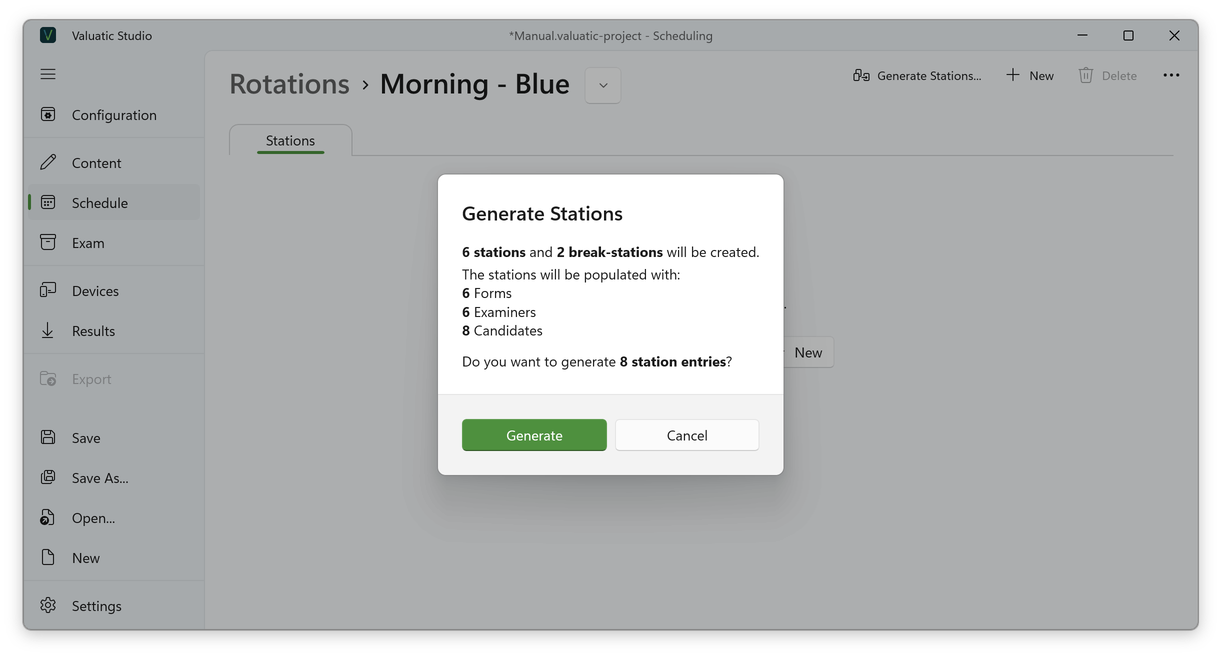
Generate Stations… creates and fills the stations of an empty rotation. A dialog first shows a summary: how many stations and break stations will be created, and how many forms, examiners and candidates will be assigned.
- There is one station per form.
- Valuatic works out the break stations itself: e.g. eight candidates need eight places, but with six forms, two break stations are added.
- The stations are filled in the order of the forms, examiners and candidates.
- The break stations are added at the end of the list. Valuatic can’t know where you want the breaks, so place them yourself.
Stations can’t be generated again once a rotation has stations. To start over, remove them with Delete All Stations… first.
Create Stations Manually
Instead of generating them, stations can also be created one by one: click New to add a station, and select its form, examiner and start candidate as described below. This gives you full control, for example for a small rotation or a special layout. Generated and manually added stations can be combined: e.g. generate the stations, then add another station with New.
Assignments
Form, examiner and start candidate are each chosen from a dropdown list, which only offers the content of the rotation.
 |
 |
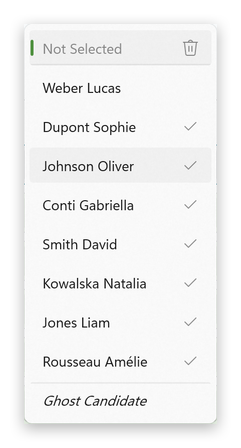 |
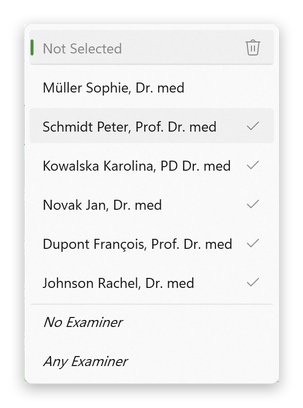
- A check mark shows that an entry is already assigned to a station. You can still select it, for example to move it to this station.
- Not Selected, with the bin icon at the top, removes the current selection.
- At the bottom are the special entries: No Form and No Examiner for break stations, Any Examiner (see below), and Ghost Candidate for the candidates.
Each entry has only one place: to place a form, an examiner or a candidate at another station, simply select it there. It is removed from the station where it was before.
Rearranging Stations
Stations are rearranged by dragging the handle on the left. The order of the list is the order of the circuit.
- When you move a station, only its form moves to the new position. The examiners and start candidates stay in their order.
- The station numbers count from the top, so only the case number in the name changes.
- A break station is different: when you move it, its No Form and No Examiner move along, so the stations it passes take their examiners with them.
Tip: Spread the break stations evenly over the circuit, e.g. one after every two cases.
Break Stations
A break station has No Form and No Examiner. Candidates at a break station simply have a pause in this round. Break stations are needed whenever a rotation has more candidates than forms, so that every candidate has a place in each round.
Ghost Candidates
A ghost candidate is a placeholder that moves through the rotation like a real candidate. Wherever the ghost is, that examiner has a pause. Ghost candidates are used, for example, to give the examiners a break.
- To add a ghost for examiner breaks, add a station with New and select No Form, No Examiner, and Ghost Candidate as start candidate.
- A ghost can also be added by selecting Ghost Candidate as the start candidate of an existing station. The following candidates then move one station down, in the same order. If there are not enough stations left, a new station is added at the end.
Note: When a ghost candidate needs an additional station, the rotation gets one more round, and every candidate an additional break.
Any Examiner
Sometimes it can’t be planned in advance which examiner will be at which station. In this case, select Any Examiner: the examiner first chooses the station in Valuatic Touch, and then picks their own name from the examiners of the rotation (see Scheduled Exam).
Summary and Validation
The panel on the right shows a live summary of the rotation:
- The validation state, e.g. All stations are valid.
- The number of stations and breaks.
- How many of the available forms, examiners and candidates are assigned (e.g. Candidates 8/8), and the number of ghost candidates. If something is missing, for example a candidate without a station, the counts show it (e.g. 7/8) and the rotation is not valid.
QR Code
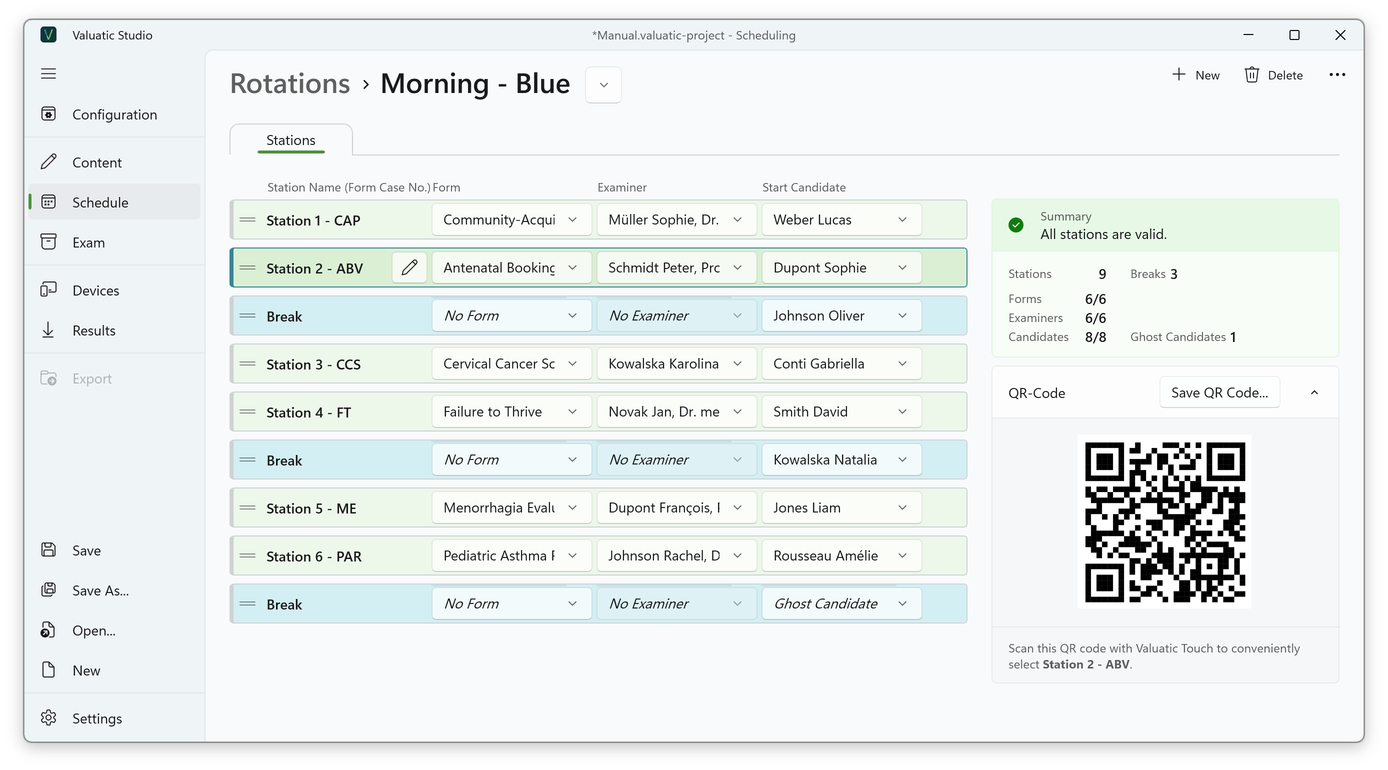
When a station is selected, the panel shows its QR code. Scan it with Valuatic Touch to select the station on the iPad. Save QR Code… saves the code, e.g. to print it and place it at the station.