The scheduling feature has not been released yet — it will be available with Valuatic 4.0.
This documentation is preliminary and subject to change.
Subscribe to our newsletter to get notified when it becomes available.
When the exam uses Scheduling, the exam screen follows the schedule set up in Valuatic Studio: the examiner selects a station, assesses the candidates in the order they come to this station, and finalizes the station with a signature.
Video: Selecting, assessing and finalizing (4:28)
Station Selection
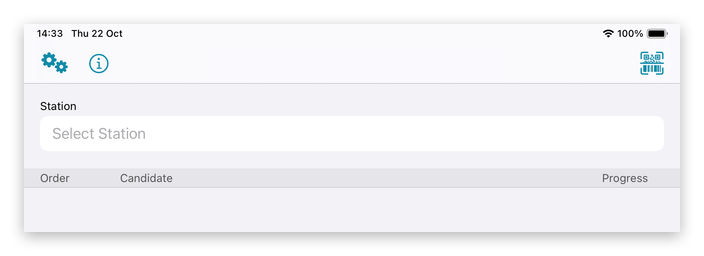
When an examiner starts, no station is selected yet. Tap Select Station to choose one from the list, or tap the scan button at the top right to scan the station’s QR code.
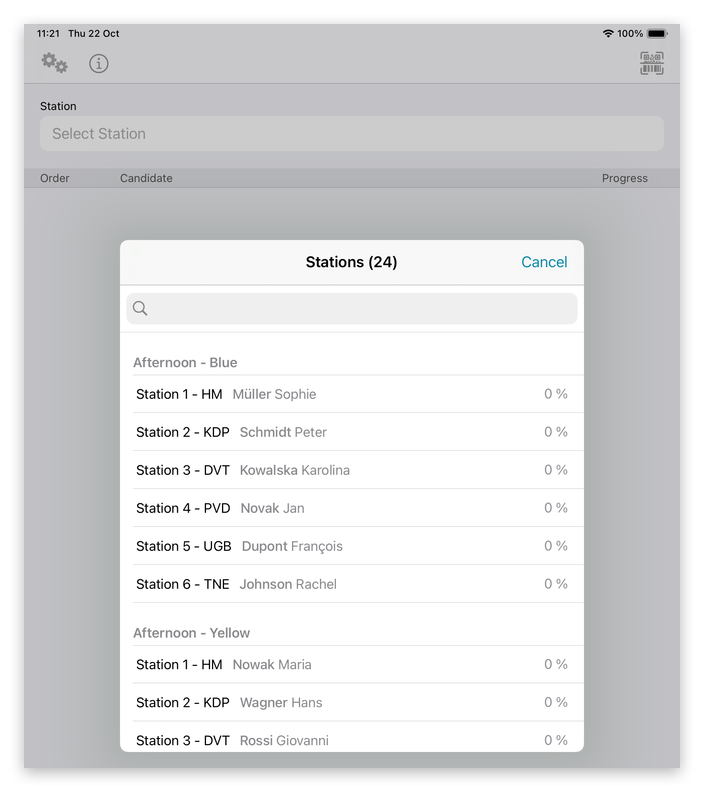
The list shows all stations of the exam, grouped by rotation, with the examiner and the progress of each station. The administrator can limit the stations shown on a device.
The QR codes of the stations are created in Valuatic Studio, see Stations. They can be printed and placed at the stations.
Station Overview
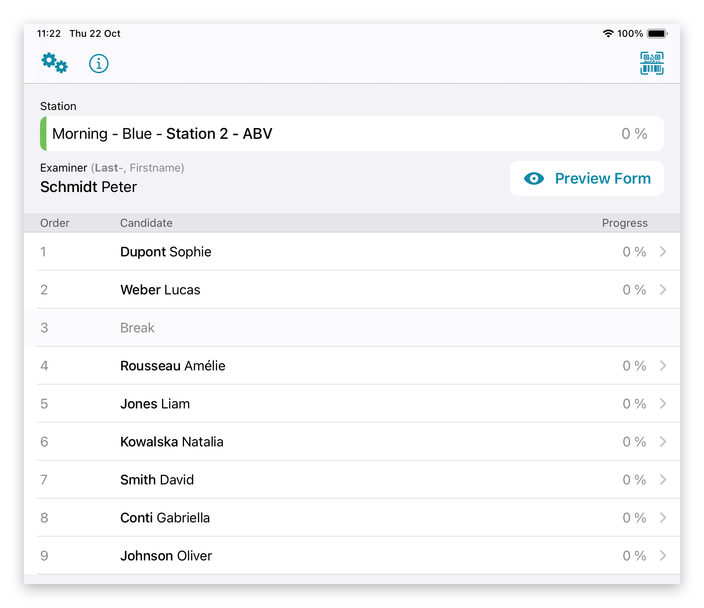
Once the station is selected, Valuatic Touch shows the rotation, the station and its examiner. With Preview Form, the examiner can look at the form before the first candidate arrives.
Important: No data is stored when making selections in the form preview!
Examiner Selection
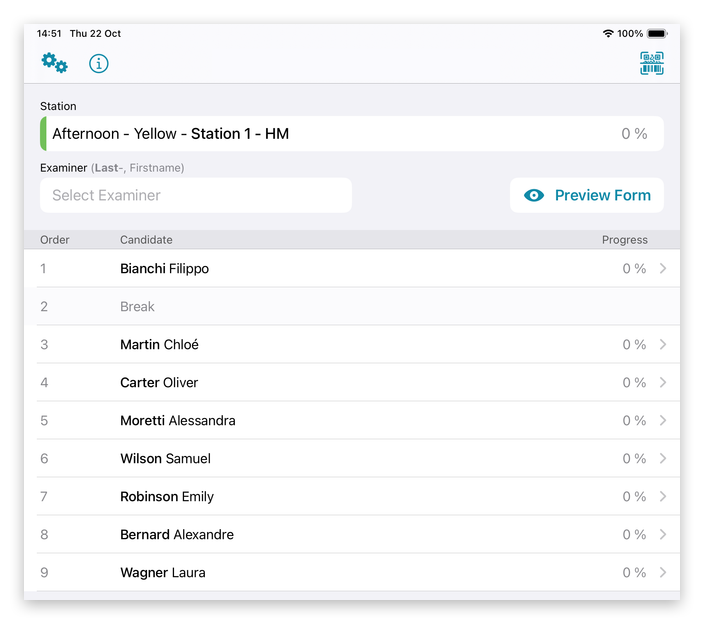
When the station was planned with Any Examiner, the examiner of the station isn’t fixed in advance, and the examiner field is still empty.
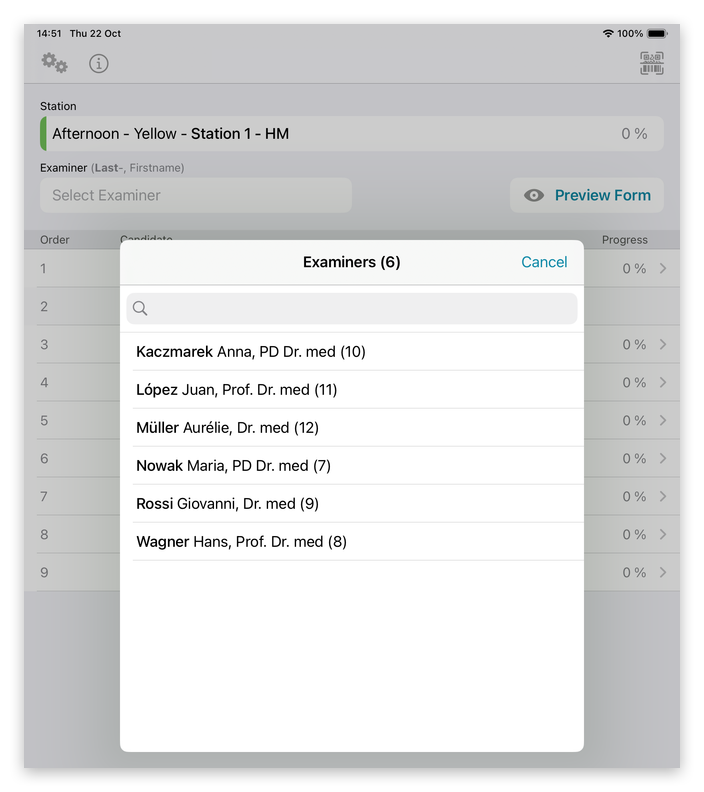
The examiner taps the field and picks their own name from the examiners of the rotation. Now the station is ready for the first candidate.
Candidate Order
Below the station, the candidates are listed in the order in which they come to this station.
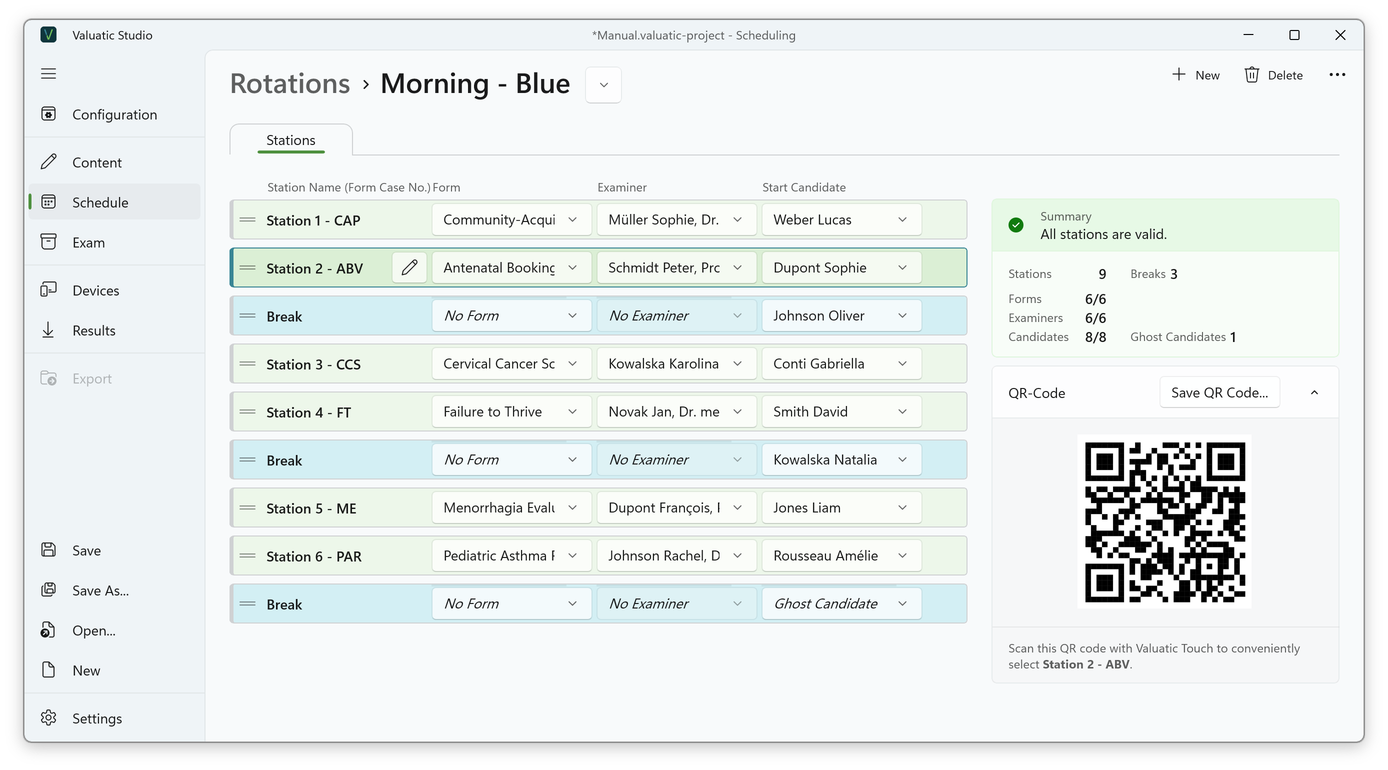
The order results from the start candidates in Valuatic Studio. With every round, all candidates move one station down. In the example, Dupont Sophie starts at Station 2. After her, Weber Lucas comes from Station 1, then the ghost candidate, and then Rousseau Amélie.
When the ghost candidate reaches the station, the list shows a Break: that’s the examiner’s pause.
Assess Candidates
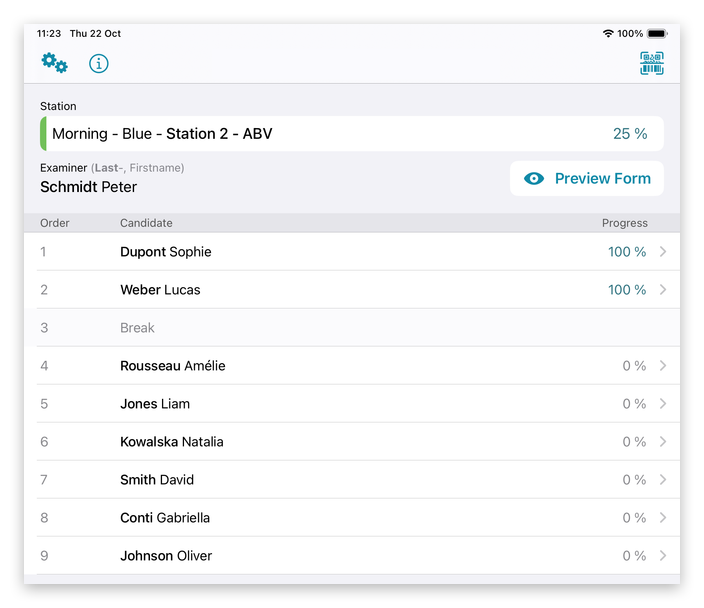
To assess a candidate, tap the row and the assessment opens, as described in Assessment. The progress shows how much of each assessment is completed. The progress of the whole station is shown next to the station’s name.
Absent Candidates
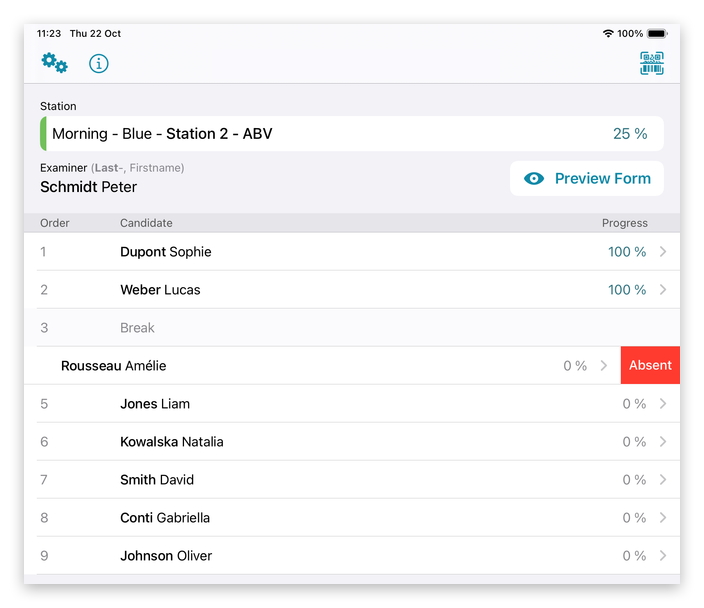
If a candidate doesn’t show up, swipe the row to the left and tap Absent.
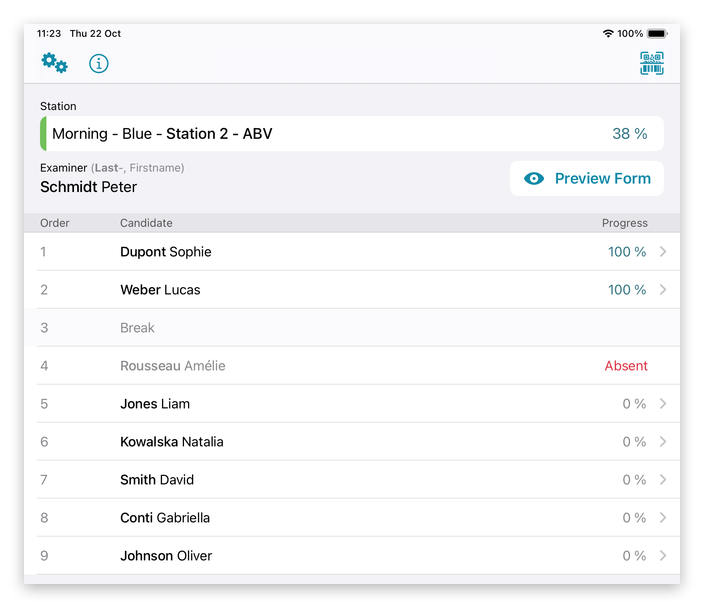
The candidate is marked as absent and counts as done for the progress of the station.
Finalize Station
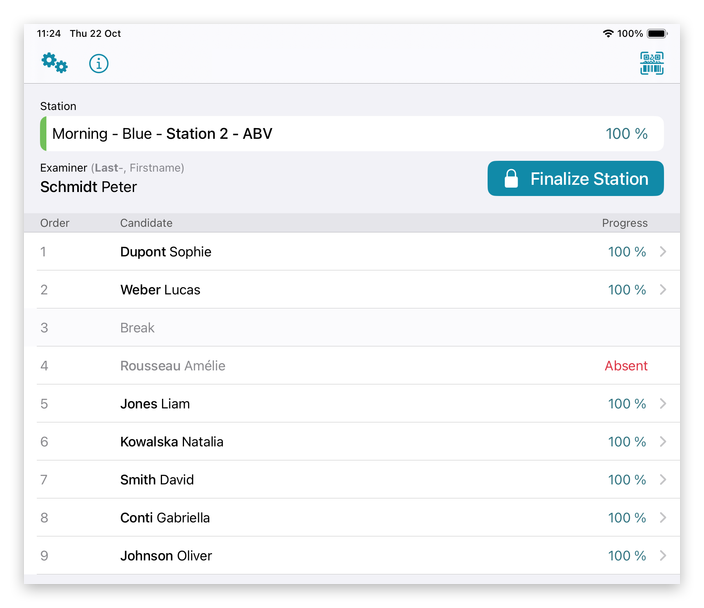
When all candidates are assessed, the station reaches 100 % and the Finalize Station button appears.
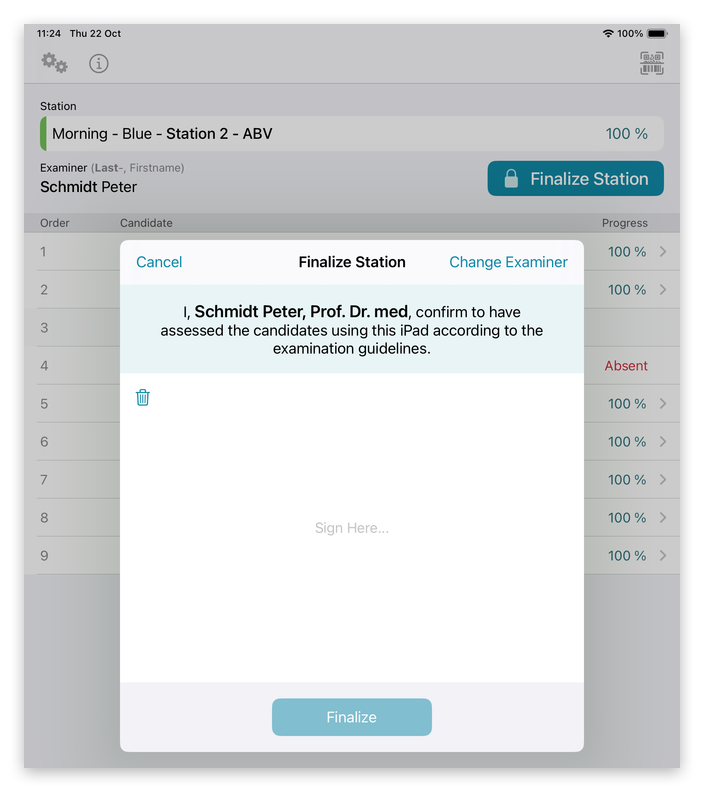
Finalizing confirms the results with the examiner’s signature.
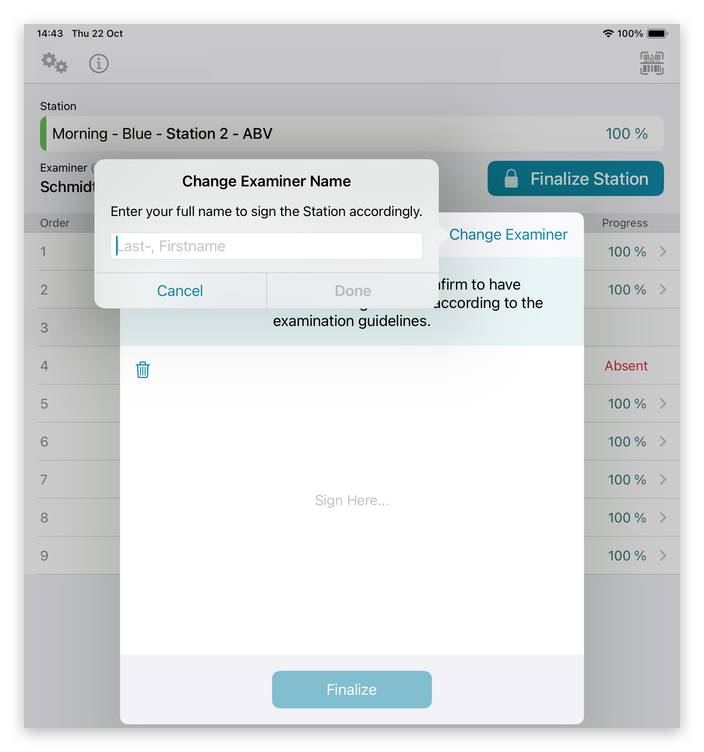
Change Examiner is meant for special cases, for example when the planned examiner falls ill and someone else takes over: they enter their own name and sign.
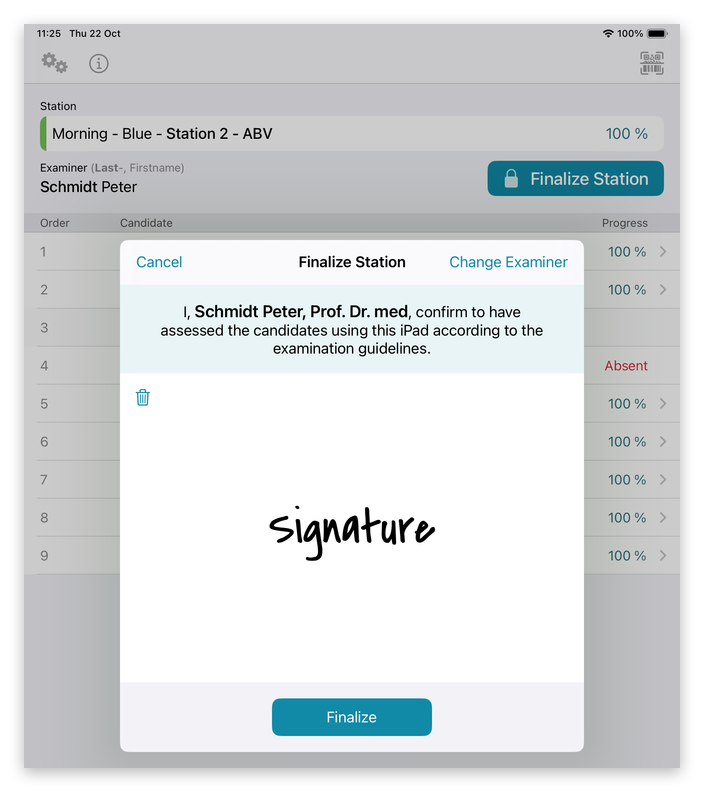
The examiner signs in the field and taps Finalize. The bin icon clears the signature.
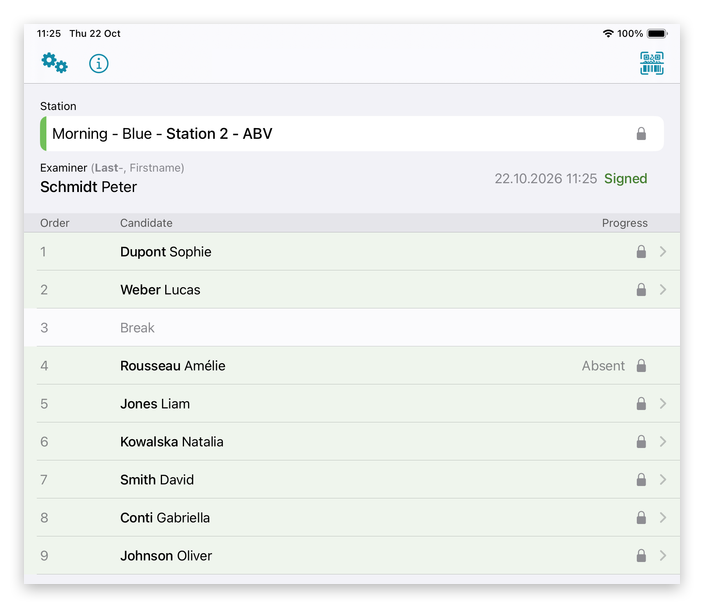
The station is now signed: the date and time are shown, and all assessments of the station are locked.
Note: If a signed station has to be corrected, the administrator can unlock it in the Results of the admin area.